Playbook: The AI Onboarding Assistant
A step-by-step guide to building an enterprise-grade onboarding solution with Copilot Studio, Power Automate, and AI Builder.
Project details
The Onboarding Story: A Manager's Experience
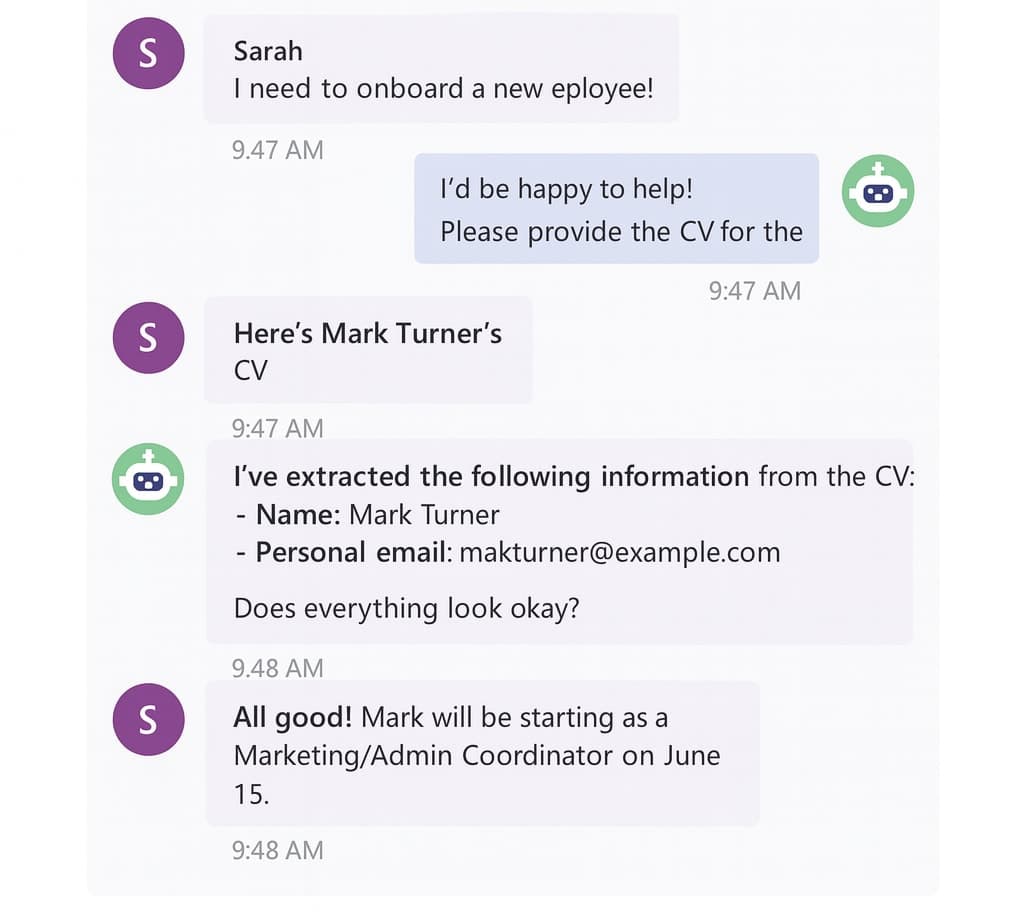
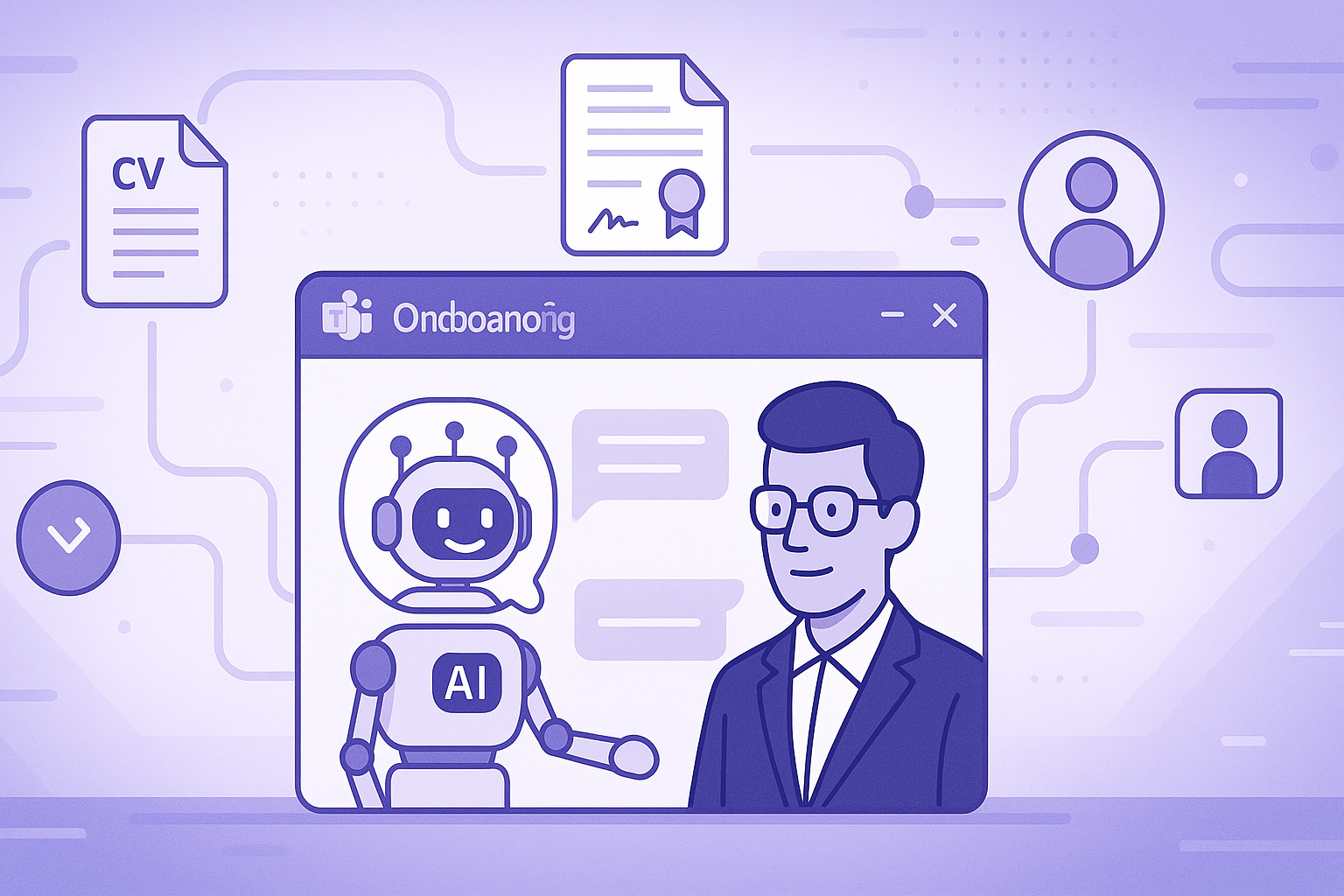
Sarah, a busy manager, needs to onboard a new team member, Mark. Instead of a manual 20-step checklist, she uses the “AI Onboarding Assistant” in Microsoft Teams.
- The Prompt: Sarah starts a chat: “I need to onboard a new employee.”
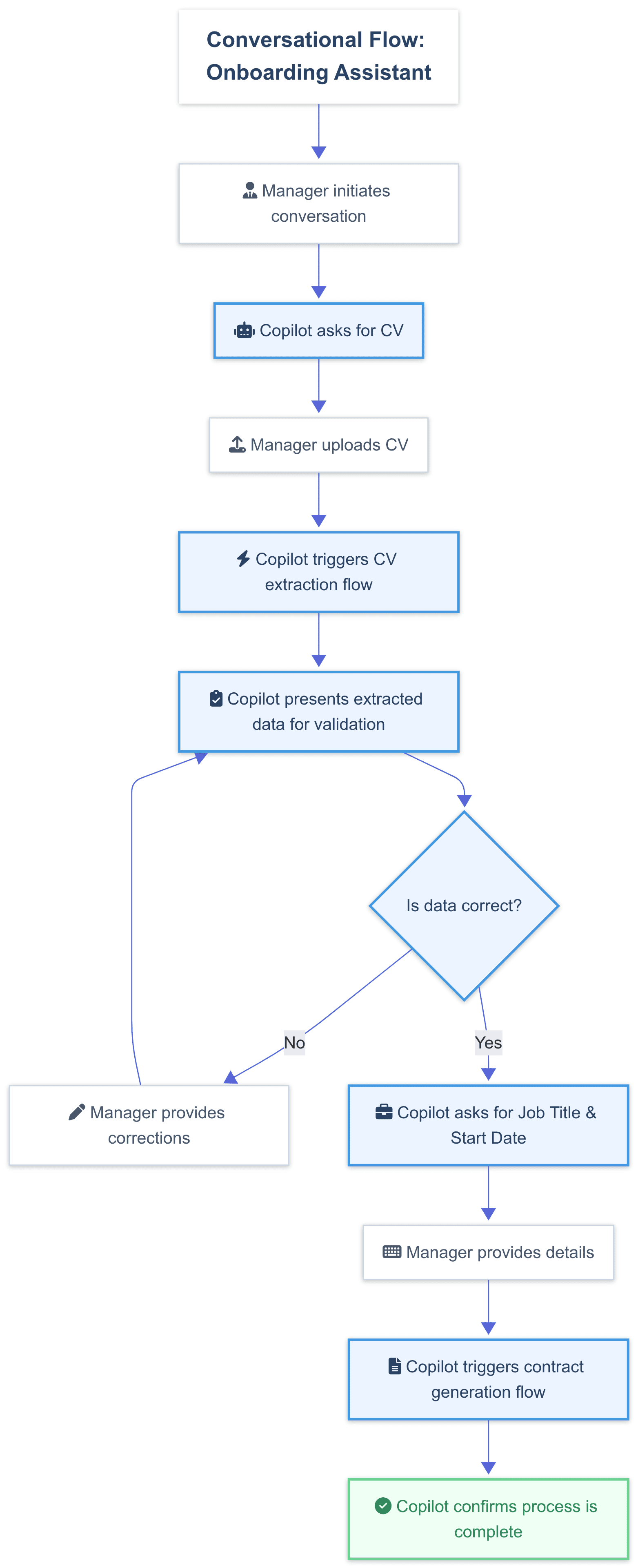
- The Interaction: The agent asks for Mark's CV. After she uploads it, the AI extracts his details, which Sarah quickly confirms. She provides his job title and start date.
- The Automation: The moment Sarah confirms the details, the agent initiates the full backend process. Mark receives a professional, branded email with his contract, which he can sign on his phone in seconds, creating an excellent first impression. Once signed, his M365 account is created, IT is ticketed for his equipment, and all relevant departments are notified.
- The Resolution: An hour later, Sarah gets a single email confirming the entire process is complete. A task that used to take half a day was finished in a 2-minute conversation.
Solution at a Glance
This solution consists of 3 core phases, powered by a set of interconnected components.
Core Components:
- 1 Copilot Studio Agent: The conversational interface for the manager.
- 4 Power Automate Flows: The automation engine for all backend tasks.
- 1 AI Builder Model: The intelligence for reading and understanding CVs.
The 3 Phases:
- Data Extraction: The agent receives the CV and uses AI to extract the new hire’s information.
- Contract Generation: The agent uses the confirmed information to create and send the employment contract for signature.
- User Onboarding: Once the contract is signed, automated flows create the user’s M365 account and notify all relevant departments.
The Implementation Guide
This module provides the detailed, step-by-step instructions to build the entire solution.
Step 1: Train the AI to Read CVs (AI Builder)
This is the intelligence that reads Mark's CV after Sarah uploads it.
- Navigate to the Power Apps portal and select AI Builder > Explore.
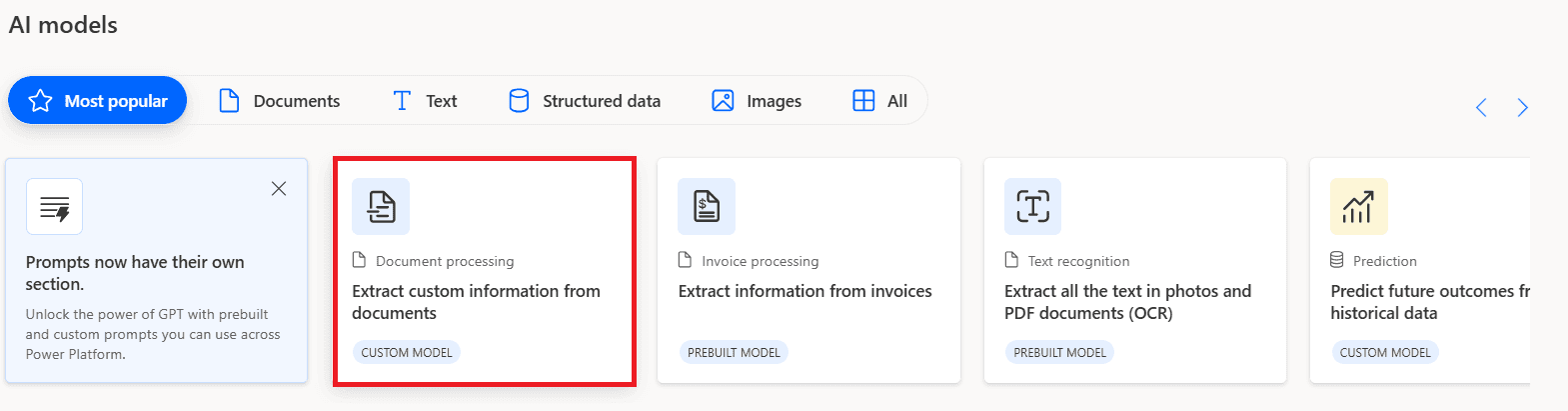
- Choose the “Extract custom information from documents” model.
- Define the fields you want the AI to find: Full Name, Personal Email, Phone Number, Home Address.
- Upload at least 5 sample CVs and tag the documents by highlighting the text that corresponds to each field. This is how the model learns.
- Once tagged, Train and Publish your model.
Step 2: Automate the Full Workflow (Power Automate)
The solution relies on a series of interconnected Power Automate flows that handle everything from contract generation to user creation. A parent flow is triggered by the Copilot, which then calls child flows to perform specific tasks, creating a modular and maintainable architecture.
Microsoft AI Builder
Used to create a custom document processing model that extracts structured data from unstructured CVs.
Power Fx
Used within Power Apps and Copilot Studio for low-code logic, like validating user input before triggering a flow.

Step 3: Build the Conversational Front-End (Copilot Studio)
Finally, we build the Copilot agent that Sarah will interact with in Teams. This involves creating a topic that guides the manager through the process, calls the Power Automate flows as plugins, and provides clear feedback at every step.